
By Gethyn Ellis, Microsoft Data Platform MVP and Microsoft Certified Trainer | GRE Solutions Limited
Prompt Generator turns a rough idea into a structured prompt you can use in Copilot. Tell it what you need to achieve and it suggests two or three suitable frameworks, writes a prompt for each and recommends where to start.
Use it to prepare a stakeholder update, shape a sales pitch, plan a rollout or improve a prompt that is not giving you useful results.
What you need
- A Microsoft 365 work account with access to Copilot and permission to use this agent. Ask your administrator to confirm the licence or billing requirements for your organisation.
- Permission to upload custom apps in Teams, or an administrator who can make the agent available to you.
- The Prompt Generator ZIP file and access to Teams on the web. This guide uses the browser route.
The options you see depend on your organisation’s settings. If the agent is already available through your organisation, go straight to Open Prompt Generator and try it.
Step 1: Download the agent
Download Prompt Generator.zip using the button below. Save it somewhere easy to find, such as Downloads.
Leave the file zipped. You will upload the ZIP itself, so there is no need to extract its contents.
The package contains the agent definition, app manifest and two icons. Installing it makes the agent available through Microsoft’s Copilot experience; it does not install a separate desktop application.
Microsoft changes its navigation over time, so your screen may look slightly different from the examples below.
Step 2: Add the agent for yourself
- Open teams.microsoft.com and sign in with your work account.
- Select Apps in the left pane, then Manage your apps.
- Select Upload an app. If you cannot see it, open the More options menu, shown as three dots near the top right.
- Choose Upload a custom app, then select Prompt Generator.zip.
- Review the agent name, publisher and permissions. Select Add to complete the installation.
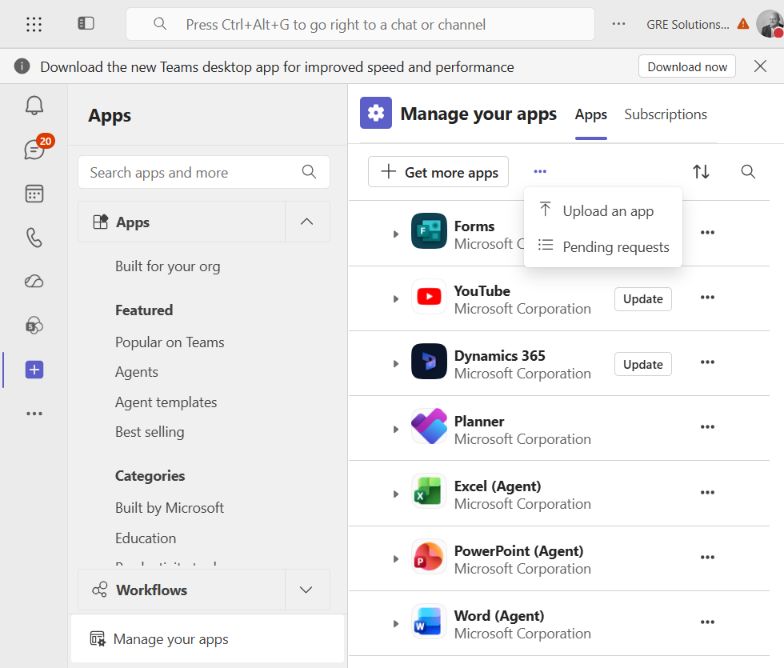
In this Teams layout, Upload an app is inside the More options menu.
Cannot see Upload a custom app?
Your organisation may restrict personal uploads. Send the ZIP file and this guide to your Microsoft 365 administrator and ask them to make the agent available. If Teams offers Submit an app to your org, you can use that approval route instead.
After the agent has been added, look for Prompt Generator in Copilot’s Agents area or agent store. If your organisation has already published it, you may also find it under Apps > Built for your org in Teams.
Alternative: Ask your administrator to publish it
An administrator can make Prompt Generator available to selected users or groups. Start with a small test audience before considering a wider rollout.
- Open admin.microsoft.com.
- Go to Agents > All agents and select Add agent. Some layouts label this Upload custom agent.
- Select Choose file and upload Prompt Generator.zip. Wait for validation.
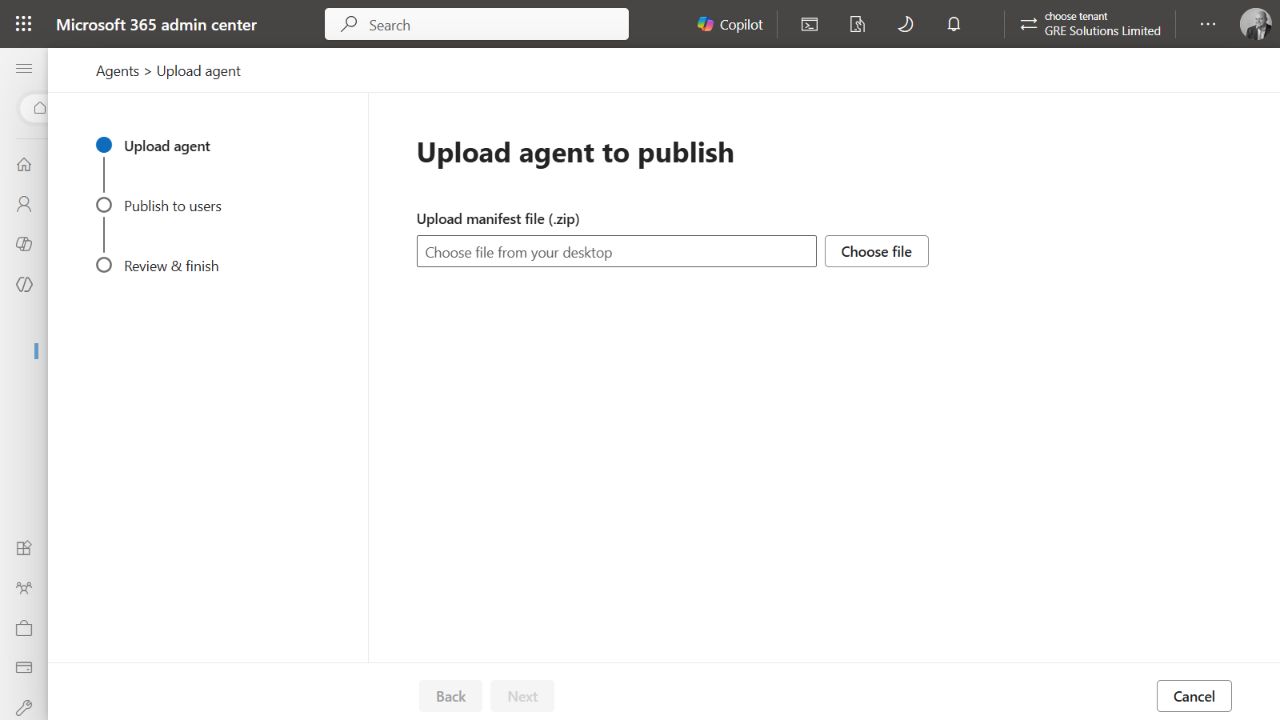
The admin centre asks for the agent ZIP before continuing to user selection.
- Once validation succeeds, check the agent’s name, icon and supported products.
- Choose who can use it, then review its permissions and capabilities.
- Complete the review and finish the deployment. Confirm that a person in the selected audience can find and open the agent.
If your tenant uses the older navigation, look for Integrated apps in the Microsoft 365 admin centre. Availability can take time to update after deployment.
If validation fails, stop and check the package rather than continuing with deployment. See Troubleshooting at the end of this guide.
Step 3: Open Prompt Generator and try it
Open Prompt Generator from the Copilot agent store or your Agents list. In Teams, you can also select its entry under Apps > Built for your org and choose Add or Open with Copilot, depending on its installation state.
Check that Prompt Generator appears in the chat header. Then describe what you need in plain language, or choose one of the suggested starters.

Start with a plain-language request, then select Send.
Try one of these requests
- Help me write a prompt to pitch our new data governance service to a CFO.
- I need to summarise what we delivered on a six-month migration project for the steering group.
- Plan the rollout of Copilot to 400 people across three business units.
You do not need to choose a framework first. Add the audience, intended outcome and any constraints you already know. If the agent asks a clarifying question, give it a short answer so it can make the prompt more specific.
Step 4: Choose a prompt and put it to work
Read the alternatives and the recommendation. The agent draws on nine frameworks: RTF, BAB, CARE, CRIT, RISE, CO-STAR, RODES, APE and GCSE.
In the example below, it recommends CRIT for developing a tailored service proposition. CRIT includes an interview step, so the AI asks questions before creating the final deliverable. BAB provides an alternative when you want to develop a persuasive before-and-after narrative.
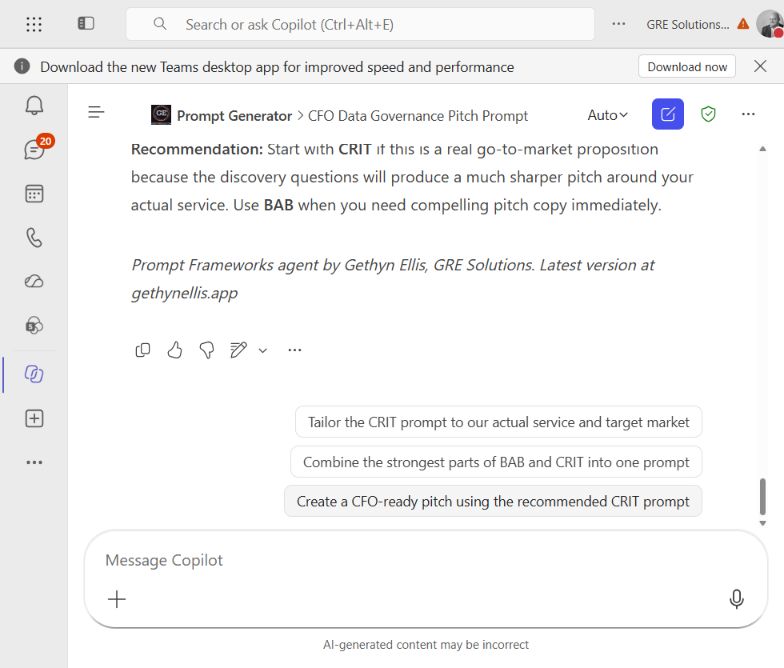
The recommendation explains which prompt to try first and why.
- Copy your chosen prompt. Use the copy button on the individual prompt block if your client provides one.
- If you use Copy Response, keep the chosen prompt and remove the other variant and surrounding commentary.
- Paste the prompt into a fresh Copilot chat. Check the names, assumptions, figures and source references, then send it.
The generated prompt is a starting point. Replace any assumed detail with your actual information and check the resulting answer before sharing it. You can reuse the prompt in another AI tool where your organisation permits that use.
Troubleshooting
There is no Upload a custom app option
Ask your administrator to confirm the approved route for installing custom agents. They may need to deploy it for you or approve a submission through Teams.
The ZIP fails validation or shows a manifest error
Check that you selected the original ZIP rather than an extracted folder. Keep the exact error message and contact the package owner or your administrator. A fresh browser session can help isolate a session problem, but it will not repair an invalid package.
The agent does not appear after installation
Check that you are signed in to the correct work account and organisation. If it was deployed by an administrator, ask them to confirm that you are in the assigned audience. Refresh Teams or Copilot and allow time for availability to update.
You still need help
Email gethyn@gethynellis.com with the error text and a screenshot. Remove confidential information before sending it.
Your data and Copilot
Use Prompt Generator in line with your organisation’s Copilot policies. Microsoft processes and stores Copilot interactions under its service arrangements, and your organisation’s retention settings can apply. Review the agent’s permissions and privacy information before using it with confidential material.
About Prompt Generator
Prompt Generator was built by Gethyn Ellis, Microsoft Data Platform MVP and Microsoft Certified Trainer, founder of GRE Solutions Limited. Its frameworks and selection approach draw on his Copilot enablement training and the book AI That Actually Works.
The agent is free to use. Microsoft licensing or usage charges may still apply. If you adapt it, keep the attribution line and link back to gethynellis.app.