

I suspect if you’re a DBA or even if you’re not a DBA but have responsibility for looking after a SQL Server, security is likely to be a massive deal to you. Now more than ever. You may have asked yourself Should I encrypted my SQL Server connections? The answer is probably yes. If that’s you your next question would likely be How do I encrypt my SQL Server connections?
Everybody is worried about security these days, its rare for a week to go by without a security breach of some kind reported in the technology media. With the responsibility for data breaches shifting to the board level of businesses and organisations, it’s usual for senior management of firms and organisation to take an active interest in securing the company’s crown jewels and data.
This extra scrutiny might mean you as DBA explaining to your senior management team what precautions you have taken to protect your data. Ensuring that your SQL Server connections are encrypted is one precaution that can help you protect your data. It will help stop those nasty hackers, sniffing the packets between your application and your database servers. The process of sniffing your packets is not that hard to do, let me show you.
Packet Sniffing your SQL Server
Now I’m not a network person, and I’m not a hacker, not by a long way. But if I can do this, imagine what some creative hacker person can do? It is scary stuff.
What does my unencrypted SQL Server traffic look like? Well, I’m going to use a network analyser to see what I can find. I will use Wireshark. One of the most famous and well-used network analysers. It is free and open-source, but there are others out there that you can use if you prefer.
Install Wireshark
I’ll let you install Wireshark for yourself. It’s not a complicated installation process. Just follow the setup wizard. I installed on it on my demo lab – DO NOT DO THIS ON A PRODUCTION SERVER. It will ask you to reboot when the installation is complete.
Setup a packet capture
Once you have Wireshark installed set up a packet capture. Click on the Capture menu and set up a capture filter on port 1433 – It’s the default port for SQL Server. I know that my SQL Server is using this port, I wonder if your SQL Servers are using this default port too?

Connect to SQL Server and run some SQL Queries
Remember my connections to this SQL Server are not encrypted.
I’m then going to use another VM to connect to my SQL Server and run some queries, like an application server might do to a SQL Server – well I’m going to run one query. On my SQL Server, I have a copy of the StackOverflow2010 database, and I’m going to run a query that selects 1 row from the user’s table. Imagine that display name was another essential piece of information not publicly available that you would want to keep safe and secure.
The query I ran is:
SELECT TOP (1) DisplayName

FROM Users
You can see the result in the image below.

Has anyone else seen this critical piece of data? Erm, IT depends? Maybe. Let us have a look at the contents of our packet trace?
If we look at the screenshot below, you can see that we have the query run from the remote server in the SQL batch.

Then, underneath we have the response. The query result is returned in plain text, and the Wireshark capture picks up the result. Remember that could have been any data from any query.

You don’t need any permissions in SQL Server to do this. Maybe you might consider encrypting your connections? Read on I will show you how.
How can I check my connections are encrypted?
You query the sys.dm_exec_connections DMV to see if you’re existing connections are encrypted
SELECT session_id

,encrypt_option

FROM sys.dm_exec_connections
You can see when I run this initially against my SQL2019 instance none of the connections is encrypted. Every session has an encrypt_option of false

Reasons people have given for not encrypting their connections.
The process of encrypting your connections, encrypting anything can feel a little daunting, mostly if you haven’t done it before. You have a reliance on a certificate and key that needs to keep safe. You might be wondering how it can impact performance. To address those concerns, these days there are lots of tools available that make certificate management easy to get right, and performance is generally OK when it comes to encrypting your SQL Server connections.
Let’s look at how you can encrypt your SQL Server connections.
How to Encrypt you SQL Server Connections
There are a few steps involved in encrypting your connections:
- Obtain a suitable certificate
- Install the certificate on the server
- Enable encrypted connections in SQL Server
- Enable the encryption on the client
Obtain a suitable certificate
Using the right certificate is essential; it can impact your security position. To that end, while you can generate a self-signed certificate and that this might be OK for demonstrating and testing purposes like I am doing here, it’s probably not recommended for production systems.
Self-signed certificates can dramatically lower the level of the security provided. For production servers, it is a good idea to use a certificate from a certificate authority (CA)
There are some requirements that the certificate must adhere too.
- The certificate needs to be valid. The system date needs to be between the “valid from” and “valid to” dates of the certificate.
- The certificate’s Subject must indicate that the common name (CN) is the same as the hostname or fully qualified domain name (FQDN) of the server computer. So this line from the script below
-Subject "CN=$env:COMPUTERNAME" - You need to issue the certificate for server authentication. This requirement means the Enhance Key Usage Property should include ‘Server Authentication (1.3.6.1.5.5.7.3.1)’
- You must create the certificate by using the KeySpec option of ‘
AT_KEYEXCHANGE‘. - You must place the certificate in the certificate store of the local computer or current user.
- The SQL Service account must have permission to access the certificate.
You can read all about the requirements in this Microsoft document
I will generate a self-signed certificate and to do that I will use Bernd Ecki’s PowerShell script which you can find over on Github. I must give full credit and thanks to Bernd for making it available.
You can find the script I used below.
New-SelfSignedCertificate -Type SSLServerAuthentication `

-Subject "CN=$env:COMPUTERNAME" -FriendlyName 'SQl2019_new' `

-DnsName "$env:COMPUTERNAME",'localhost.' `

-KeyAlgorithm 'RSA' -KeyLength 2048 -Hash 'SHA256' `

-TextExtension '2.5.29.37={text}1.3.6.1.5.5.7.3.1' `

-NotAfter (Get-Date).AddMonths(36) `

-KeyExportPolicy NonExportable -KeySpec KeyExchange `

-Provider 'Microsoft RSA SChannel Cryptographic Provider' `

-CertStoreLocation Cert:\LocalMachine\My `

| fl -Property Thumbprint,FriendlyName,DnsNameList,NotAfter,PrivateKey,SerialNumber,Subject,Issuer
When I execute the PowerShell script against my SQL2019 VM, a certificate is generated.
Is the certificate installed correctly on the server?
If you generated the certificate using the above script, the process would install the server’s certificate for you. However, if you acquired your certificate another way you will have to install the certificate on the server. You can also follow this process to check that the server certificate is installed correctly.
- Click Start, then click Run and in the Run dialogue box type: MMC. This will open the Microsoft Management Console:
- From the File menu, select Add/Remove Snap-in (Ctrl + M)
- Select Certificates from the Available snap-ins pan, click Add to add it to the Selected snap-ins pane.
- You will be prompted to open the snap-in for your user account, the service account, or the computer account. Select Computer Account.
- Select Local computer, and then click Finish.
- Click OK in the Add/Remove Snap-in dialogue box.
Click to select the Personal folder in the left-hand pane. (if you used the above script to create the certificate you would see the certificate in the list.)
Give the SQL Service account permissions on the certificate.
With the MMC still open, we need to give the SQL Service account permissions to access the certificate. You do this by following these steps
- Click on the certificate
- Then in the right-hand pane chose the server name > More Actions > All Tasks > Manage Private Keys
- Then click Add,
- Add the SQL Server Service account, in my case, The service account is NT Service\MSSQLSERVER
- Click OK


Enable encrypted connections in SQL Server
With the certificate installed on the SQL server, we can now configure SQL Server for encrypted connections. We will use SQL Server Configuration Manager to do this
- Open SQL Server configuration manager on the server in question
- expand the SQL Server Network Configuration
- Right-click on Protocols for MSSQLSERVER (Or the instance in question) and select Properties
- Click the certificate tab at the top, and I will choose the SQL2019_new certificate from the drop-down list.
- You then need to configure SQL Server to Force Encryption, so click the Flags tab
- Change the drop-down next to Force Encryption to say yes and click OK
- You will see a warning that says “any changes will not take effect until the service has been restarted” Click OK
- In the right-hand pane click on the SQL Server Services option
- Right-click the SQL Services and choose restart.

The certificate tab allows you to choose the server certificate

Change this option to make your SQL Server instance use an encrypted connection
Connect using an encrypted connection
You can connect via an encrypted connection in Management Studio. When connecting there are a couple of options you need to choose.
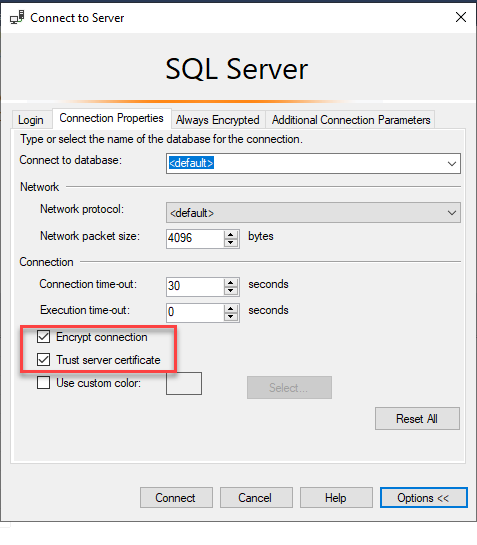
When connected, you can check that the connections are encrypted. This time they return as being true.

And if you look at the traffic from Wireshark, you can see that you can’t read the packets’ contents because they encrypted.

Phew! You can now relax a little safe in the knowledge the connections to your SQL Server encrypted. It will make is much more difficult for packet sniffers to read your data.
I hope you enjoyed this article called “How to encrypt your SQL Server Connections” if you need any help with the security of your SQL Server or managing your data platform, please do get in touch.
0 Comments