

A question I’m hearing in almost every Copilot Studio session right now: “Should this be an agent flow or a workflow?” Both sit under the same Workflows menu, both automate a process, and most makers simply pick whichever button they click first.
That’s worth avoiding. Choosing between Copilot Studio agent flows and workflows decides how your automation handles AI steps, how you test it, and what it costs you to change your mind later. If you start with an agent flow and later need the newer workflow features, you’ll have to rebuild.
The short answer
An agent flow is Copilot Studio’s classic, Power Automate-style automation, running on the standard harness. A workflow is the newer format, running on the Microsoft Copilot harness, with dedicated AI nodes such as Classify and Extract and the ability to test a single step in the designer. Both follow the steps and branches you define.
My view: for new builds where any step has to interpret free text or documents, start with a workflow. Use an agent flow when you’re bringing existing Power Automate logic across, or when the process is purely rule-based on structured data. Either way, decide deliberately.
What agent flows and workflows have in common
Both formats follow the triggers, steps and branching rules you design. Outputs from AI actions such as prompts or Classify can vary, even with the same input. Both can run independently on a trigger or schedule, and both can be called by a compatible agent as a tool if the automation uses the agent-call trigger and responds to the agent.
That gives you a predictable process with AI at the steps that need it. The choice is about which AI actions you need and how you want to test them.
Copilot Studio agent flows vs workflows: four differences that matter
| Area | Agent flow | Workflow |
|---|---|---|
| Runtime | Standard harness | Microsoft Copilot harness (called the GitHub Copilot harness in some Microsoft Learn articles) |
| AI steps | Run a prompt, call an agent, pause for human input | Dedicated nodes such as Classify and Extract. Call a published agent or define one inline. |
| Testing | End to end | Whole workflow or a single node in isolation with sample inputs |
| Where to build it | Workflows → More create options beside New workflow → Agent flows | Workflows → New workflow |

Runtime
Agent flows run on the standard harness, which also powers classic Copilot Studio agents. Workflows run on the Microsoft Copilot harness. You’ll still see the GitHub Copilot harness in some Microsoft Learn articles. Microsoft explains the change in its harness rename announcement.
The harness also affects which agents you can call. To call an agent built on the newer harness, use an agent node inside a workflow. The Copilot Studio connector in Power Automate supports standard-harness agents, as set out in Microsoft’s guidance on calling Copilot Studio agents.
AI steps
An agent flow can run a prompt, call an agent and pause for human input. That covers a lot. A workflow adds purpose-built nodes: Classify routes free text to a branch by meaning, Extract pulls named values and tables out of documents such as invoices and contracts, and the agent node calls a published agent or one you define inline.
Testing
This is the difference I’d weight most heavily. An agent flow is tested end to end. A workflow lets you test the whole thing or a single node in isolation, using mock inputs or values loaded from a previous run. See Microsoft’s workflow designer guidance.
When an AI step misbehaves in an end-to-end test, you spend time working out which step failed and why. Node-level testing lets you hammer one classification step with twenty awkward examples before you wire up anything downstream. That’s where delivery hours are saved.
Where to build it
Both sit under Workflows in Copilot Studio. New workflow creates a workflow. To create an agent flow, select More create options beside New workflow and choose Agent flows under Build with standard orchestration. A small detail, but it explains why so many teams end up with whichever format the default button gave them.
A worked example: IT helpdesk ticket routing
Take a simple helpdesk process. A user submits a ticket, and it needs to reach the right resolver group.
The agent flow version routes on the category the user picked from a dropdown on the form. Cheap, predictable, and only as good as the user’s choice. Anyone who has run a service desk knows how often “Other” gets selected.
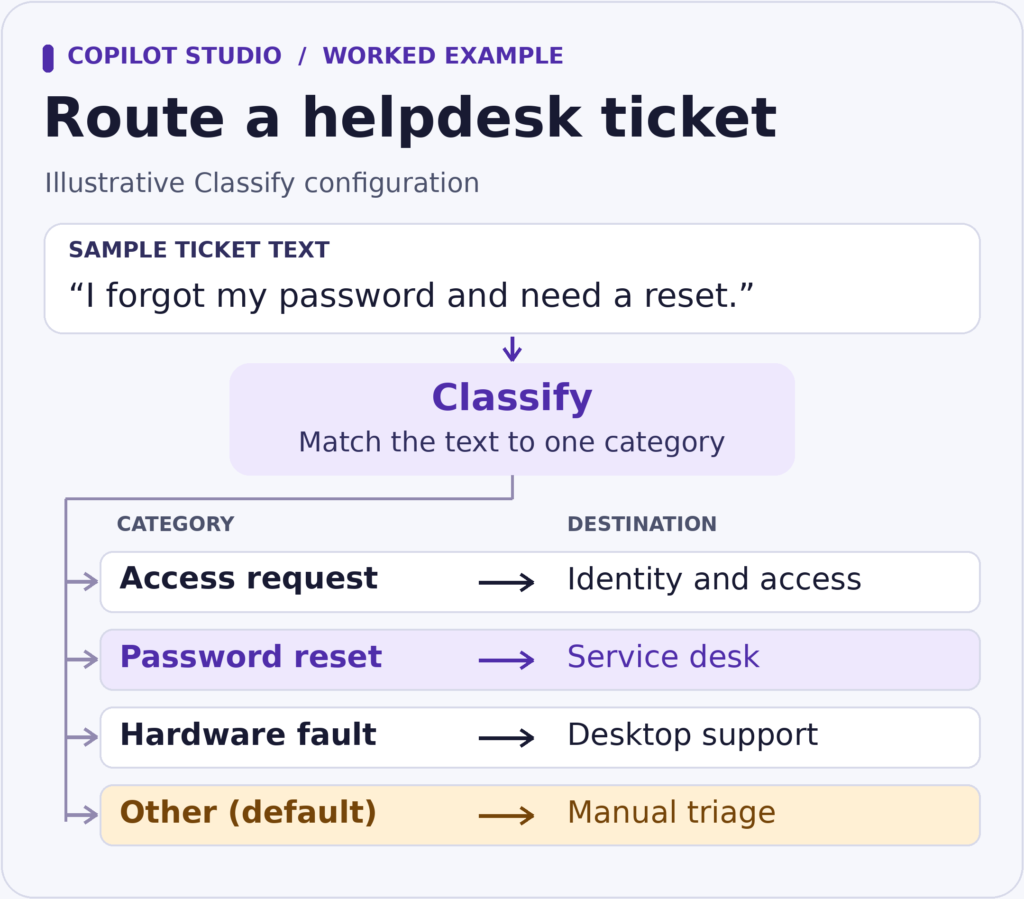
The workflow version uses a Classify node to infer the category from the ticket’s free text, then applies exactly the same routing rules. The business logic doesn’t change. The quality of the input does.
To be fair to agent flows, you could classify the text with a prompt action and branch on the result. It works. The difference is that the workflow gives you a dedicated node you can configure, read on the canvas and test on its own.
Three things I’d do when building the Classify step
- Wire up the Other branch. Classify creates a default category for anything that doesn’t match. Send it to a manual triage queue so nothing disappears silently.
- Add examples for the categories that blur. “Can’t log in” could be an access request or a password reset. A few well-chosen examples per ambiguous category do more than a long list.
- Match the model to the volume. A faster model suits clearly distinct categories at high volume. Use a more capable one when the categories are subtle.
Migration: what you can move and what you’ll rebuild
This is where the commercial risk sits, so be clear-eyed about it.
- Power Automate cloud flow to agent flow. The flow needs to sit in a solution, the environment needs Copilot Studio capacity, and the conversion is one-way because billing moves from Power Automate to Copilot Studio. Microsoft’s conversion guidance walks through the steps.
- Power Automate cloud flow to workflow. Rebuild the cloud flow as a workflow.
- Agent flow to workflow. Rebuild the agent flow as a workflow.
The trap: converting a cloud flow to an agent flow feels like progress, and it is. But if you’ll want Classify or Extract later, you’re paying for the build twice. If the process is heading for AI-driven steps within the next year, I’d usually budget for the workflow build now.
Check the cost model before you commit
Both formats draw on Copilot Studio capacity for the actions they run. Two practical points for whoever owns the budget:
- Testing can use credits. Agent flow tests in the designer are exempt from Copilot Studio capacity charges. Budget for workflow testing, since building and testing on the newer harness may use Copilot Credits. See Microsoft’s workflows FAQ.
- Capacity can block new runs. When the environment runs out of Copilot Credits, new runs can be blocked. Runs in progress finish. Agent flow designer tests and agent flow runs started by an agent during an authenticated Microsoft 365 Copilot user’s interaction are exempt. Monitor usage in the Power Platform admin centre and consider pay-as-you-go for business-critical automation. See agent flow capacity and workflow capacity.
My decision framework
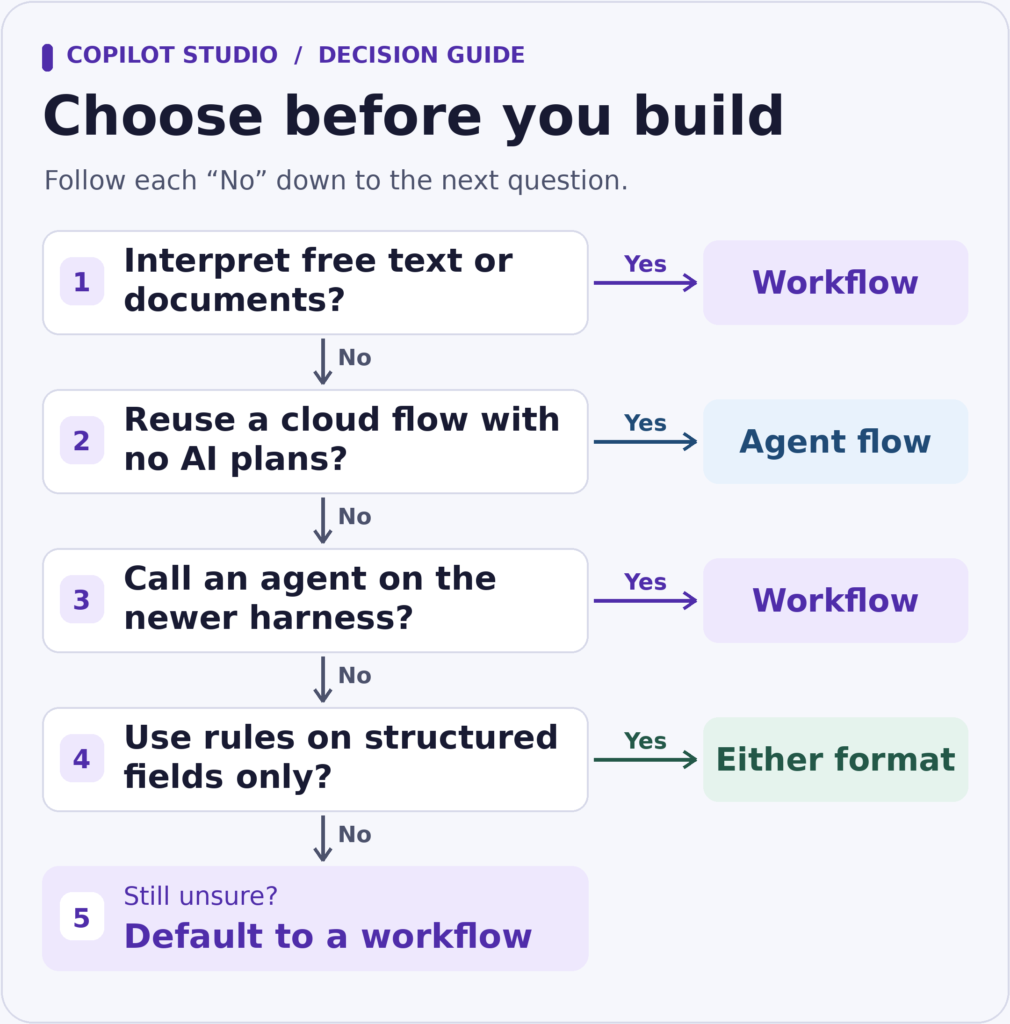
- Does any step need to interpret free text or documents? Build a workflow.
- Are you reusing a working Power Automate cloud flow with no AI ambitions? Convert it to an agent flow.
- Does a step need an agent built on the newer harness? Build a workflow and use the agent node.
- Is it purely rule-based on structured fields? Either works. Choose the format your team will maintain, and assume requirements will grow.
- Still unsure? For new builds, default to a workflow. The testing experience alone justifies it.
The takeaway
Microsoft continues to support agent flows, and for converted Power Automate logic they’re the sensible home. For new automation with AI in the loop, workflows give you dedicated AI actions and the option to test them in isolation. Discovering six months in that you need those features can mean paying for a rebuild.
Get the AI Adoption Playbook
The free 14-page guide covers five prompt frameworks, with worked examples you can use with your team. Download The AI Adoption Playbook.
If you’re deciding where to start with AI across your organisation, take the AI Readiness Assessment.
0 Comments